CI/CD
Relevant tools: GitHub, Jenkins, GitLab, Azure DevOps, and others
Your existing CI/CD pipeline or workflow system continues to drive your CD/CD processes. The Orchestrator does not come with its own pipeline or workflow system.
Integrations overview
The Orchestrator plays a central part in your Internal Developer Platform by being the go-to place for managing deployments and providing insights into deployment and rollout states of applications and infrastructure.
Orchestrator integrations can be structured along the core aspects represented by each box in the big picture below, with popular tools serving each aspects.
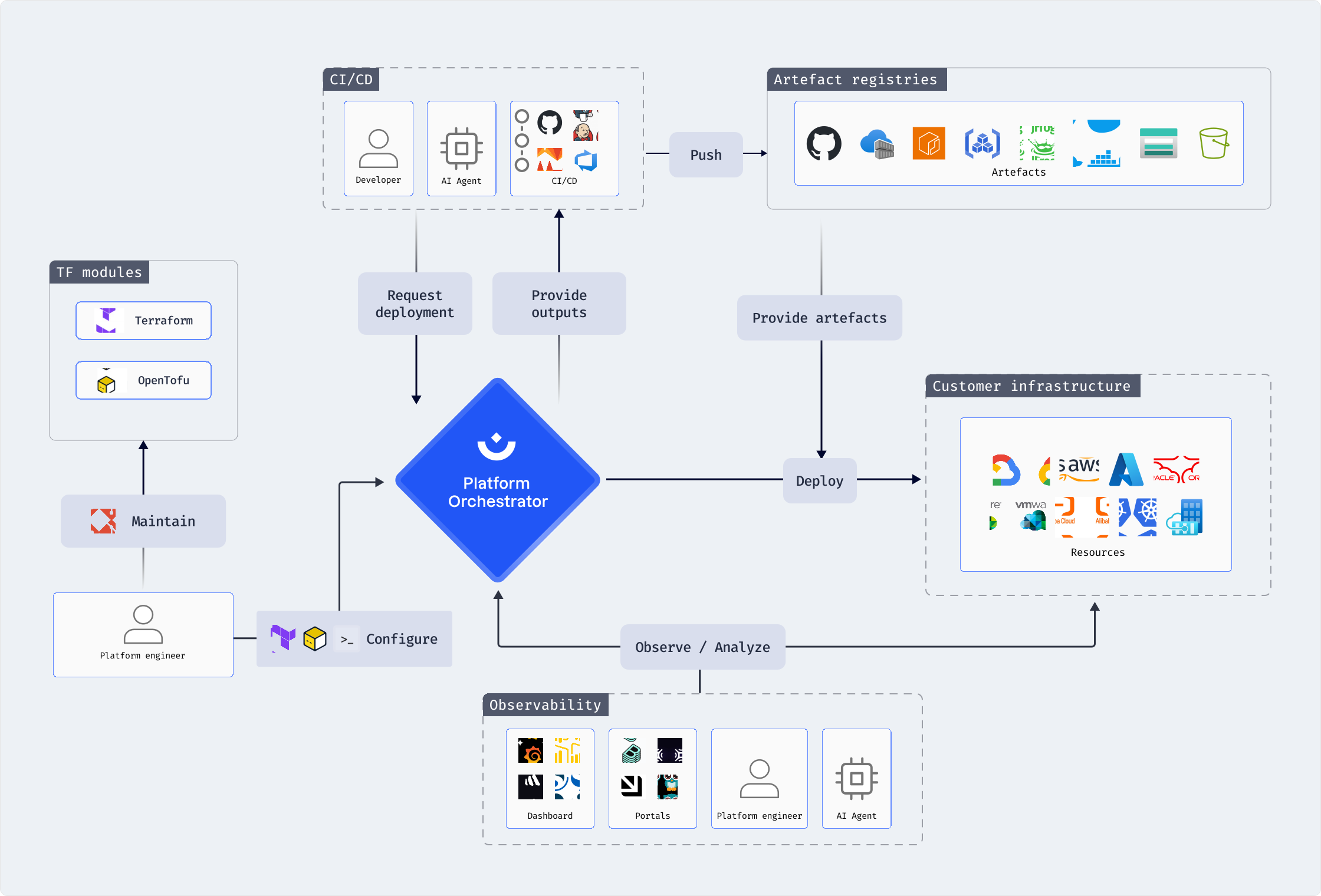
Adjustments will probably have to be made around the “deploy” parts of your CD/CD workflows when integrating the Orchestrator. They may actually simplify them.
All other parts of your CI/CD workflows generally remain unchanged. In particular, CI pipelines continue to build and push artefacts to your registries as before, to be used only during deployment.
CI/CD setups vary greatly between organizations, but there are some common patterns.
Continuous deployment
If you are building and deploying continuously, then a CD pipeline or pipeline step is usually triggered to deploy a newly built artefact to the target environment similar to this flow:
flowchart LR
    subgraph actors[ ]
        direction TB
        developer(fa:fa-person<br/>Developer) ~~~ robot(fa:fa-robot<br>AI agent) ~~~ otherPipeline(fa:fa-gear<br/>Other pipeline)
    end
    subgraph ciPipeline[CI pipeline]
        direction LR
        build(("Build the<br/>artefact")) --> tests(("Unit tests /<br/> smoke tests"))
        tests --> push(("Push artefact<br/>to registry"))
    end
    actors -->|trigger| ciPipeline
    subgraph cdPipeline[CD pipeline]
        deploy((Deploy))
    end
    subgraph infra[Infrastructure]
        direction TB
        deployedWorkload(Deployed resources)
    end
    ciPipeline --> cdPipeline --> infra

    class deploy highlight
    style actors fill:#00000000,stroke-dasharray: 5 5
Perform these modifications to deploy your resources via the Platform Orchestrator:
- Prepare a service user with appropriate permissions to deploy into the target environments, and place its authentication token in a secret accessible to the pipeline. Check the documentation of your pipeline tool for details
- Add a manifest file to the repository running the pipeline, specifying all the required resources that make up a deployment
- Modify the “Deploy” step(s) of the pipline to deploy via the Plaform Orchestrator
Doing so involves changing some or all deployment steps to execute a single deploy command using the hctl CLI. This is a sample implementation as a GitHub workflow:
jobs:
  example:
    runs-on: ubuntu-latest
    env:
      HUMANITEC_ORG: ${{ vars.HUMANITEC_ORG }}
      HUMANITEC_AUTH_TOKEN: ${{ secrets.HUMANITEC_AUTH_TOKEN }}
    steps:
    - name: Setup hctl
      uses: humanitec/setup-hctl@v1
      with:
        version: "1"
        token: ${{ secrets.GITHUB_TOKEN }}
    - name: Deploy a manifest
      run: hctl deploy my-project my-environment ./manifest.yaml
Find more options for the hctl deploy command here.
The manifest may contain dynamic elements for greater flexibility in your workflow. Refer to placeholders support and dynamic replacement to see how.
Receiving outputs
If your manifest defines outputs, add the --result flag to the hctl deploy command in your pipeline to capture them. Then use the outputs in subsequent pipeline steps like this (using GitHub workflows as an example):
jobs:
  example:
    # ...
    steps:
    - name: Deploy a manifest and capture outputs
      run: hctl deploy my-project my-environment ./manifest.yaml --result outputs.yaml
    - name: Use outputs
      run: |
        # Use outputs.yaml to perform any post-deployment steps
Obtaining deployment logs
Your pipeline steps may need to access the log output of a hctl deploy command. See returning deployment logs securely for instructions to embed in your pipeline.
Viewing the generated TF code
Your pipeline steps may need to access the TF code that was generated for a deployment. Use the hctl get tf command following a deployment step like this (using GitHub workflows as an example):
jobs:
  example:
    # ...
    steps:
    - name: Deploy
      run: hctl deploy my-project my-environment manifest.yaml
    - name: View TF code
      run: |
        export LATEST_DEPLOY_ID=$(hctl get deployments my-project my-environment -o yaml | yq -r '.[0].id')
        hctl get tf $LATEST_DEPLOY_ID > tf-output.tf
See viewing the generated TF code for more details on this operation.
Environment promotion
A common CI/CD use case often executed by pipelines is promoting the deployment state from one environmnent to the next, e.g. from development to staging.
With the Orchestrator, build your pipeline to obtain the hctl CLI as shown above and have it then execute this single command (using GitHub workflows as an example):
jobs:
  example:
    # ...
    steps:
    - name: Promote from development to staging
      run: hctl deploy my-project staging environment://development
Find more variations for environment promotion using the hctl deploy command here.
Approvals
A common CI/CD use case is requesting approval before proceeding to the next pipeline step, usually performed by a human. This functionality remains in your CI/CD tooling with the Orchestrator providing input to make the decision.
For example, your pipeline may perform a --plan-only deployment, produce deployment logs and/or the TF output, request an approval, and then proceed to execute the deployment.
flowchart LR
  subgraph cdPipeline[CD pipeline]
    direction LR
    planOnly(("hctl deploy<br/>--plan-only")) -->|Deployment logs<br/>TF code| approve((fa:fa-user<br/>Approve)) -->|Approved| deploy(("hctl deploy"))
  end